Developer Guide
- Acknowledgements
- Setting up, getting started
- Design
- Implementation
- Documentation, logging, testing, configuration, dev-ops
- Appendix: Requirements
-
Appendix: Instructions for manual testing
- Launch and shutdown
- Adding a student
- Deleting a student
- Editing a student
- Finding a student
- Adding a grade to a student
- Setting mastery check result for a student
- Adding a task
- Deleting a task
- Adding a Mastery Check
- Adding a Consult
- Adding a Studio
- Deleting a Lesson
- Mark Task
- Mark Lesson
- Mark Student
- Unmark Task/Lesson/Student
- Adding a note to a lesson
- Deleting a note from a lesson
- Adding participation for a student in a lesson
- Saving data
Acknowledgements
- This project is based on the AddressBook-Level3 project created by the SE-EDU initiative.
Setting up, getting started
Refer to the guide Setting up and getting started.
Design
 Tip: The
 .puml files used to create diagrams in this document can be found in the diagrams folder. Refer to the PlantUML Tutorial at se-edu/guides to learn how to create and edit diagrams.
Architecture
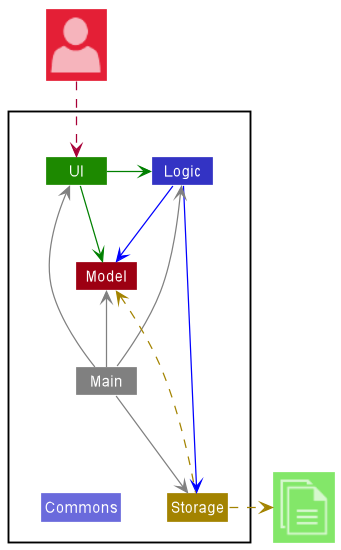
The Architecture Diagram given above explains the high-level design of the App.
Given below is a quick overview of main components and how they interact with each other.
Main components of the architecture
Main has two classes called Main and MainApp. It is responsible for,
- At app launch: Initializes the components in the correct sequence, and connects them up with each other.
- At shut down: Shuts down the components and invokes cleanup methods where necessary.
Commons represents a collection of classes used by multiple other components.
The rest of the App consists of four components.
-
UI: The UI of the App. -
Logic: The command executor. -
Model: Holds the data of the App in memory. -
Storage: Reads data from, and writes data to, the hard disk.
How the architecture components interact with each other
The Sequence Diagram below shows how the components interact with each other for the scenario where the user issues the command deletestudent 1.
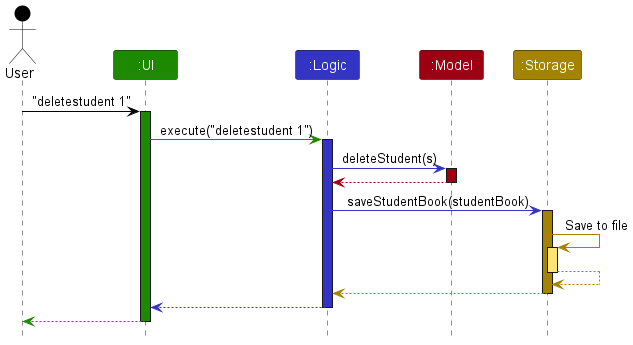
Each of the four main components (also shown in the diagram above),
- defines its API in an
interfacewith the same name as the Component. - implements its functionality using a concrete
{Component Name}Managerclass (which follows the corresponding APIinterfacementioned in the previous point.
For example, the Logic component defines its API in the Logic.java interface and implements its functionality using the LogicManager.java class which follows the Logic interface. Other components interact with a given component through its interface rather than the concrete class (reason: to prevent outside component’s being coupled to the implementation of a component), as illustrated in the (partial) class diagram below.
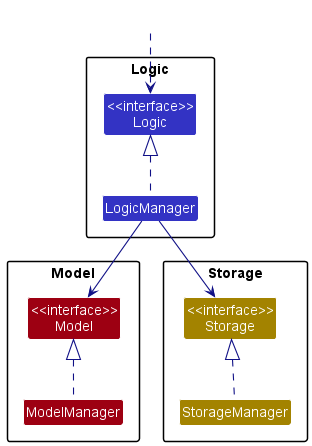
The sections below give more details of each component.
UI component
The API of this component is specified in Ui.java
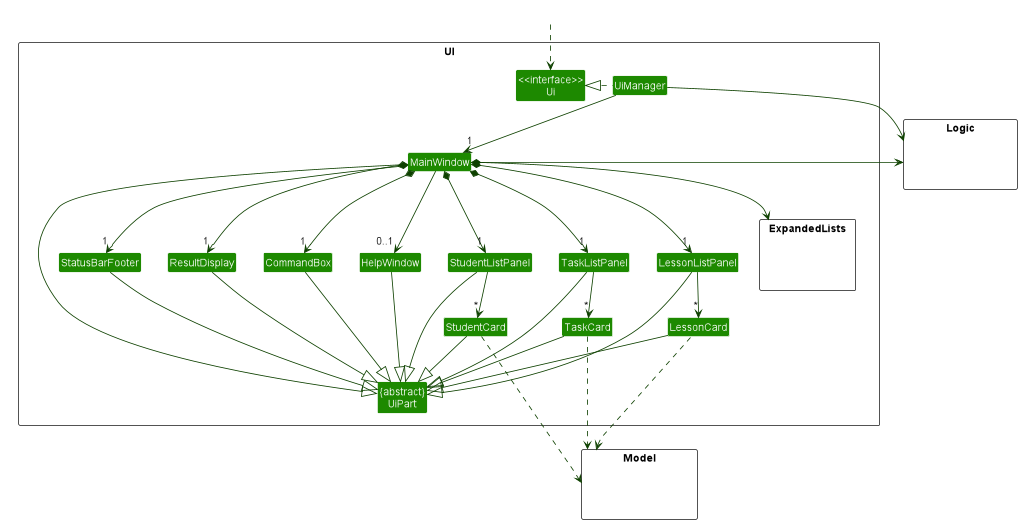
The UI consists of a MainWindow that is made up of parts e.g.CommandBox, ResultDisplay, TaskListPanel, StatusBarFooter etc. All these, including the MainWindow, inherit from the abstract UiPart class which captures the commonalities between classes that represent parts of the visible GUI.
At any time, the MainWindow displays 1 of the following 4 lists: default list, expanded student list, expanded task list or expanded lesson list. Each of these lists are made up of different parts. For example, the ExpandedStudentCard builds the expanded student list while the StudentCard builds the default list.
In the class diagram above, the parts used to build the expanded lists i.e. ExpandedStudentList, ExpandedTaskList and ExpandedLessonList have been abstracted out into the ExpandedLists package due to space constraints. Instead, it displays the parts used to build the default list only.
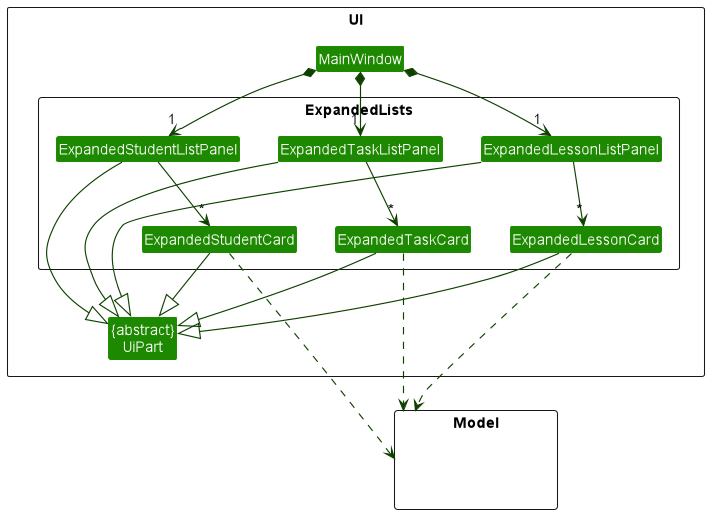
In the class diagram above, the parts used to build the expanded lists that were abstracted out previously are shown.
The UI component uses the JavaFx UI framework. The layout of these UI parts are defined in matching .fxml files that are in the src/main/resources/view folder. For example, the layout of the MainWindow is specified in MainWindow.fxml
The UI component,
- executes user commands using the
Logiccomponent. - listens for changes to
Modeldata so that the UI can be updated with the modified data. - keeps a reference to the
Logiccomponent, because theUIrelies on theLogicto execute commands. - depends on some classes in the
Modelcomponent, as it displaysStudent,TaskandLessonobjects residing in theModel.
Logic component
API : Logic.java
Here’s a (partial) class diagram of the Logic component:
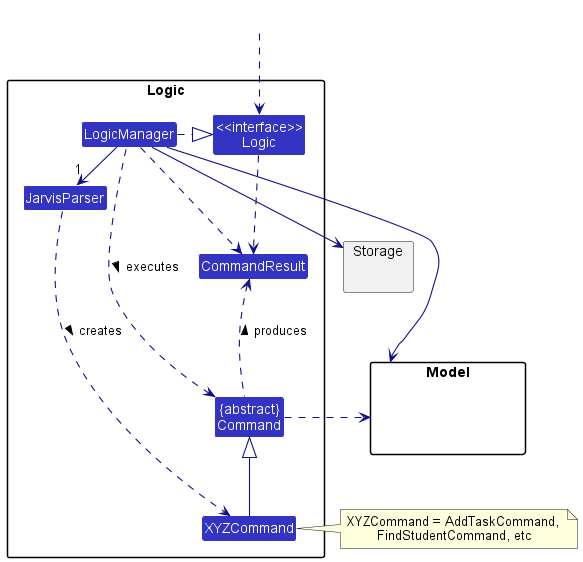
How the Logic component works:
- When
Logicis called upon to execute a command, it uses theJarvisParserclass to parse the user command. - This results in a
Commandobject (more precisely, an object of one of its subclasses e.g.,AddTaskCommand) which is executed by theLogicManager. - The command can communicate with the
Modelwhen it is executed (e.g. to add a task). - The result of the command execution is encapsulated as a
CommandResultobject which is returned back fromLogic.
The Sequence Diagram below illustrates the interactions within the Logic component for the execute("deletestudent 1") API call.
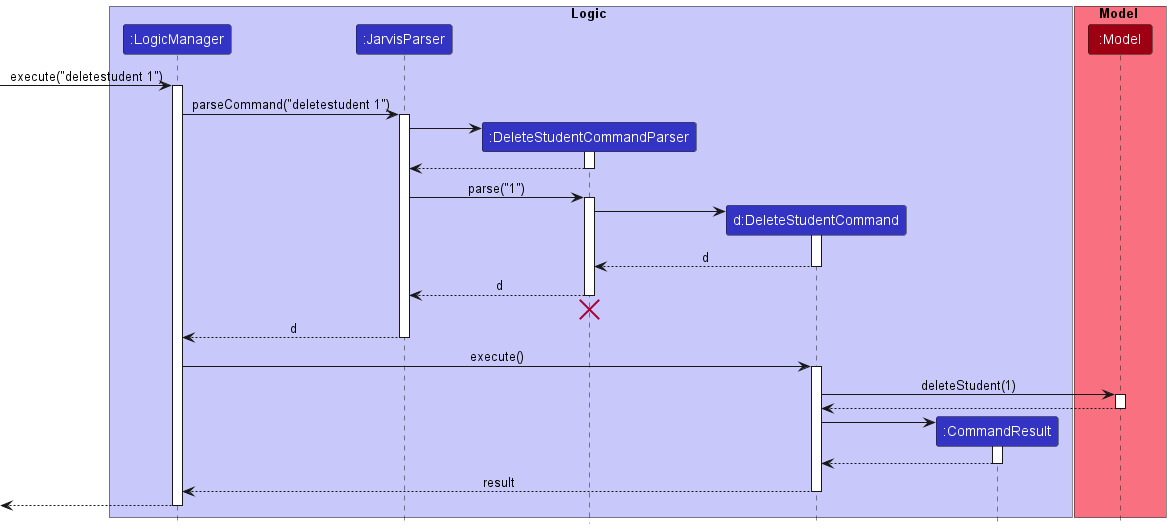
 Note: The lifeline for
 DeleteStudentCommandParser should end at the destroy marker (X) but due to a limitation of PlantUML, the lifeline reaches the end of diagram.
Here are the other classes in Logic (omitted from the class diagram above) that are used for parsing a user command:
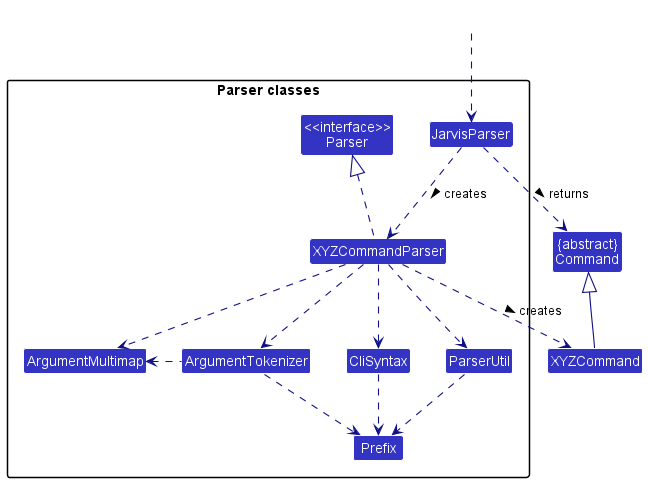
How the parsing works:
- When called upon to parse a user command, the
JarvisParserclass creates anXYZCommandParser(XYZis a placeholder for the specific command name e.g.,AddTaskCommandParser) which uses the other classes shown above to parse the user command and create aXYZCommandobject (e.g.,AddTaskCommand) which theJarvisParserreturns back as aCommandobject. - All
XYZCommandParserclasses (e.g.,AddTaskCommandParser,DeleteStudentCommandParser, …) inherit from theParserinterface so that they can be treated similarly where possible e.g, during testing.
Model component
API : Model.java
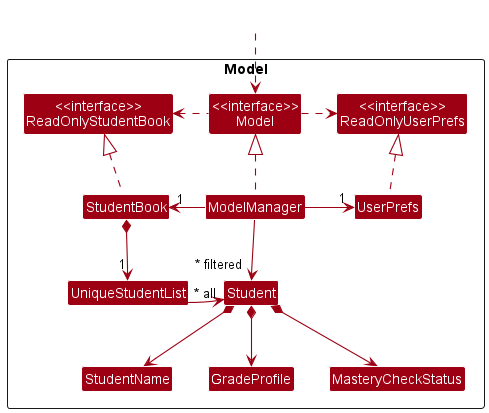
The Model component,
- stores the student data i.e., all
Studentobjects (which are contained in aUniqueStudentListobject). - stores the currently ‘selected’
Studentobjects (e.g., results of a search query) as a separate filtered list which is exposed to outsiders as an unmodifiableObservableList<Student>that can be ‘observed’ e.g. the UI can be bound to this list so that the UI automatically updates when the data in the list change. - stores a
UserPrefobject that represents the user’s preferences. This is exposed to the outside as aReadOnlyUserPrefobjects. - does not depend on any of the other three components (as the
Modelrepresents data entities of the domain, they should make sense on their own without depending on other components)
Similar analogues exist for task and lesson data. The class diagram is similar apart from:
- the different naming (
TaskBookandLessonBookinstead ofStudentBook,UniqueTaskListandUniqueLessonListinstead ofUniqueStudentList) - the components of the
TaskandLessonclasses. For example, instead ofStudentNameandMatricNumber,Taskis composed out ofTaskDesc,TaskDeadlineetc.
In particular, the following class diagram shows how a lesson is represented in the Model component.
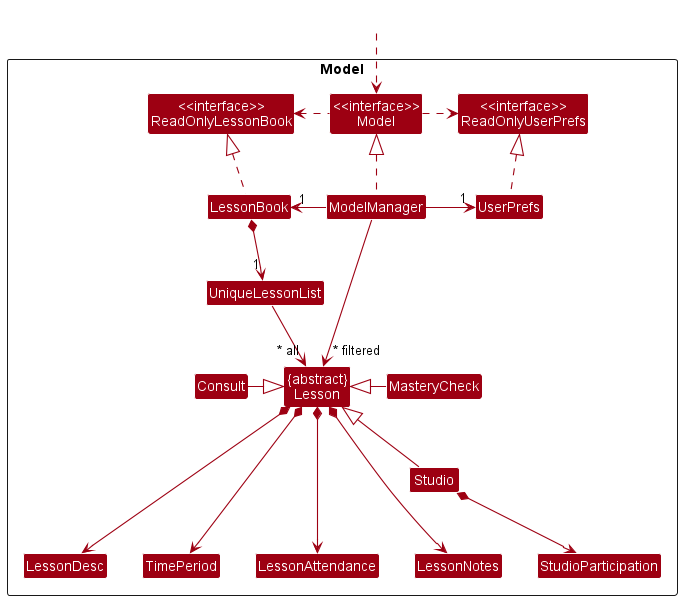
Note that the 3 Lesson subtypes (Studio, MasteryCheck and Consult) inherit from the abstract Lesson class. Each lesson consists of smaller components such as LessonAttendance, TimePeriod etc.
Storage component
API : Storage.java
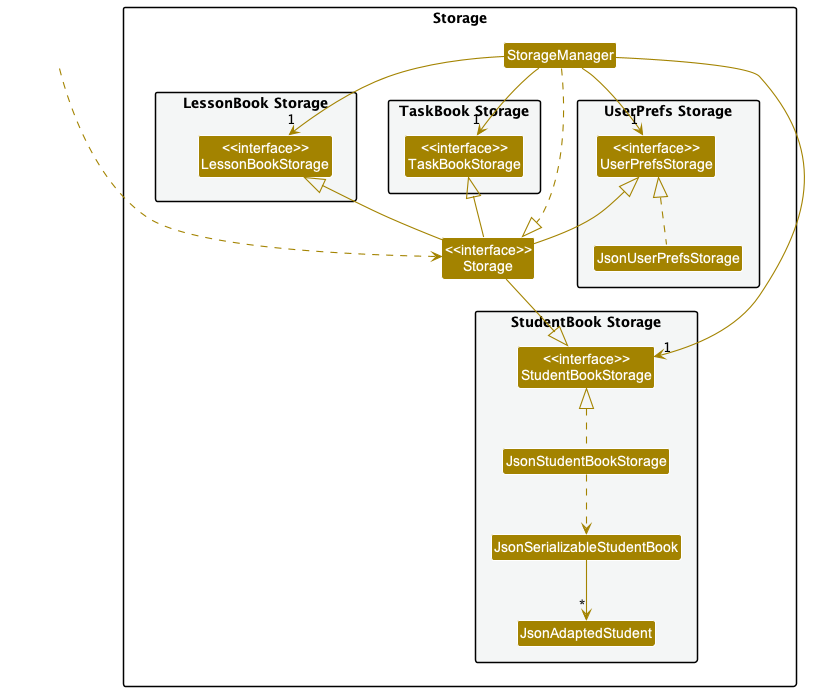
The above diagram only shows the UserPrefs and StudentBook Storage in full. TaskBook Storage is done similarly to StudentBook Storage. The only difference is the name of the classes (JsonTaskBookStorage instead of JsonStudentBookStorage, JsonAdaptedTask instead of JsonAdaptedStudent etc.)
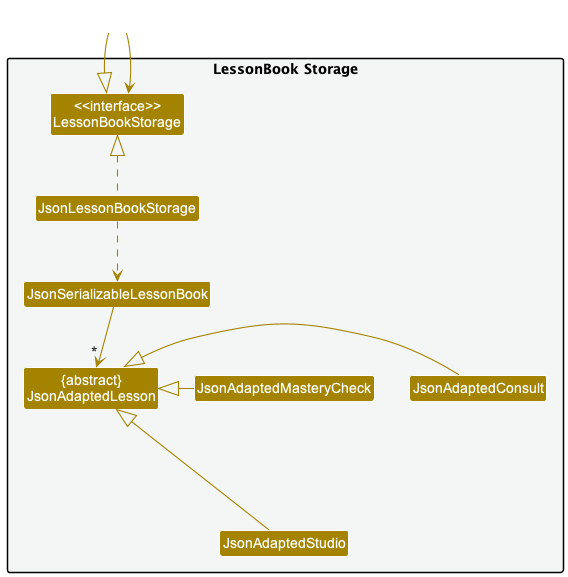
The LessonBook Storage is slightly different from the StudentBook and TaskBook Storages.
The Storage component,
- can save student, task and lesson data as well as user preference data in json format, and read them back into corresponding objects.
- inherits from
StudentBookStorage,TaskBookStorage,LessonBookStorageandUserPrefStorage, which means it can be treated as any one of them (if only the functionality of only one is needed). - depends on some classes in the
Modelcomponent (because theStoragecomponent’s job is to save/retrieve objects that belong to theModel)
Common classes
Classes used by multiple components are in the jarvis.commons package.
Implementation
This section describes some noteworthy details on how certain features are implemented.
List Students / Tasks / Lessons
For the implementation of the liststudent, listtask and listlesson commands, it is important to explain the layout of the MainWindow component of the UI.
The MainWindow contains a StackPane which stacks 1 SplitPane component and 3 VBox components. The SplitPane component is a container for the default view of JARVIS, where all 3 lists (i.e. student/task/lesson list) are displayed side by side. Each VBox component is a container for the expanded version of one of the 3 lists (i.e. expanded student/task/lesson list).
Upon initialising the app, all 3 VBox components are set to “not visible”. The SplitPane component remains visible, which displays the default view of the app.
For the command, we’ll use the example of liststudent though the same applies for listtask and listlesson.
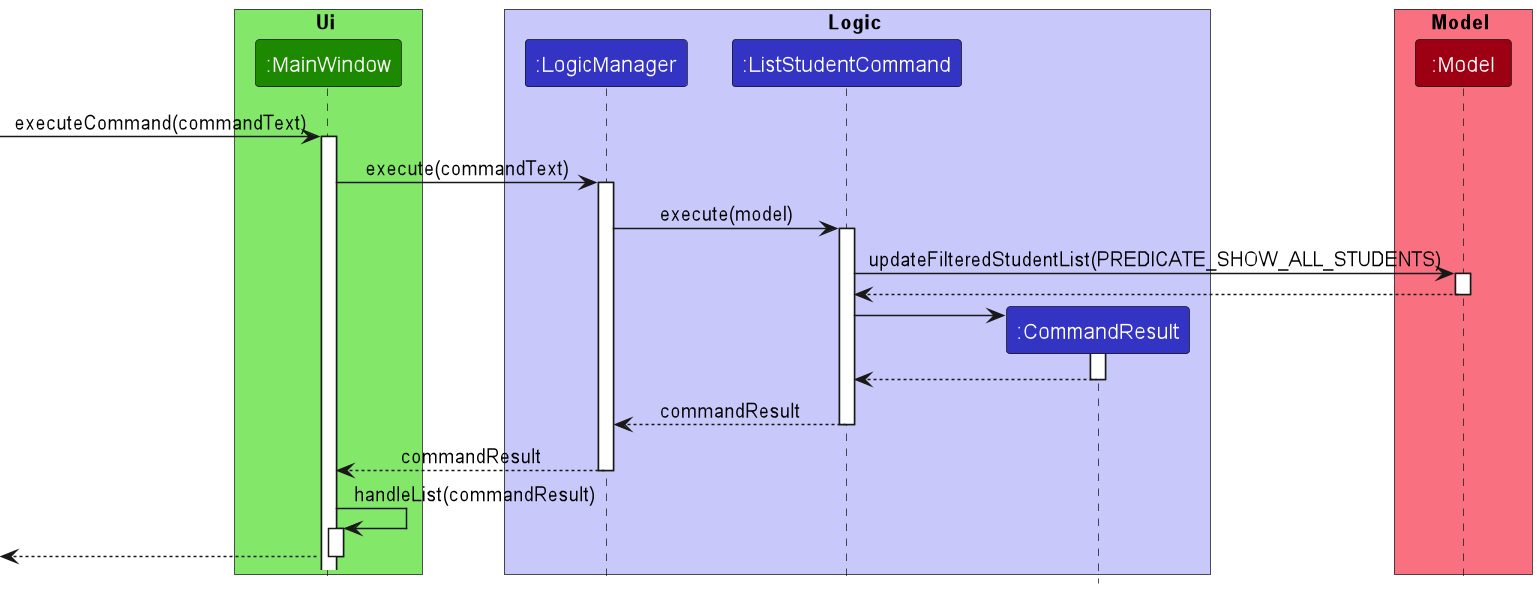
To see the expanded version of the student list, the user keys in the valid command (liststudent). The MainWindow passes the command text to LogicManager, which then sends it to the parser to generate a ListStudentCommand. The ListStudentCommand is then executed to produce a CommandResult object. This CommandResult is returned to MainWindow and supplied as an argument to the handleList method, which then sets all content of the StackPane to “not visible” except for the VBox container of the expanded student list.
The following sequence diagram shows what happens after MainWindow receives the command text by the user:
-
MainWindowreceives the command text and supplies it as an argument to theexecutemethod ofLogicManager - The command text is parsed and
LogicManagerexecutes the command, producing aCommandResult - The
CommandResultis successively returned toMainWindow -
MainWindowcalls its ownhandleListmethod with theCommandResultas an argument
The implementation for listtask and listlesson is similar to this.
Mark Task as done / not done
In order to mark a task as completed, the user keys in a valid command (e.g. marktask 2). Parsing of the user input is done (see the sequence diagram for deleting a student in the Logic component for a similar parsing sequence) and a MarkTaskCommand is then generated. The following sequence diagram shows what happens when the MarkTaskCommand is executed.
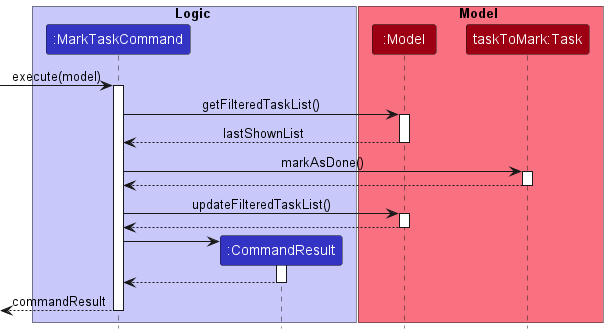
- First, the list of tasks is obtained and the index is matched to the corresponding task.
- This task is then marked as done.
- The list of tasks in the model is then updated in order to display the updated task in the UI.
The implementation for marking a task as not done is similar.
Adding a Lesson
In order to add a Lesson into JARVIS, the user keys in a valid command (e.g. addmc l/mastery check 1 sd/2022-09-15T20:00 ed/2022-09-15T20:30 si/1 si/2)
Parsing of the user input is done and a AddMasteryCheckCommand is then generated. (See the sequence diagram for deleting a student in the Logic component)
The sequence diagram is similar apart from:
- the command executed and parsed (
addmc l/mastery check 1 sd/2022-09-15 st/12:00 ed/2022-09-15 et/14:00 si/1 si/2instead ofdeletestudent 2) - the different command class (
AddMasteryCheckCommandParserandAddMasteryCheckCommandinstead ofDeleteStudentCommandParserandDeleteStudentCommand) - function called in main (
addLessoninstead ofdeleteStudent)
MasteryCheckCommandParser checks if:
- all compulsory prefixes are present (
l/anded/are optional) - lesson description if provided is not empty
- start date time is before end date time
- student indexes are int
Otherwise, ParseException will be thrown.
The rationale behind this design is that it is up to the user to include description for the lesson. Even without a description, the user will know the type of lesson which is sufficient to prepare for the lesson.
The end date is optional as lessons are most likely to start and end on the same day, hence end date will be perceived to be the same as start date if not specified.
It is also illogical for a lesson to start after the end date and time. At least one Student must be assigned to a MasteryCheck as the purpose of MasteryCheck is to assess a student’s capability.
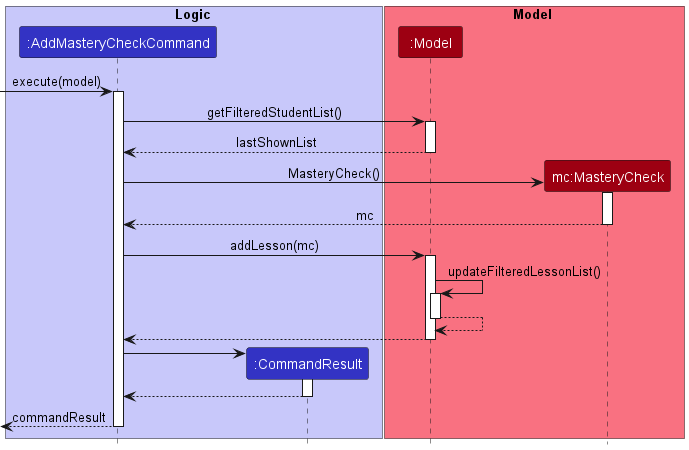
The following sequence diagram shows what happens when the AddMasteryCheckCommand is executed upon a successful command.
-
AddMasteryCheckCommandwill get the students involved in theMasteryCheckvia indexing of thelastShownList. If noStudentare found based on the index,CommandExceptionwill be thrown, stating invalid student index. - After a
MasteryCheckobject is created,Modelwill check if there already exists aMasteryCheckin the currentLessonBookwith the same identity fields. If this is the case,CommandExceptionwill be thrown, stating duplicate Mastery Check. -
Modelwill also check with existingLessonsif there will be a clash inTimePeriod. This serves as a reminder to the user that there is already another lesson at that time slot.CommandExceptionwill be thrown, stating clash in timeslot.
The above explanation is also applicable to adding consultation and studio lessons. They are similar apart from:
- the different naming(
AddConsultCommandParser,AddStudioCommandParseretc instead ofAddMasteryCheckParser) - for
Studio, allStudentcurrently in theStudentBookinstead ofFilteredStudentListwill be used to createLessonAttendanceandLessonNotes- Studio are tutorials and all students are expected to attend.
- As a result, adding a Studio command does not require user to input student indexes.
Adding notes for a lesson
In adding notes for an existing Lesson in JARVIS, the user has the option to:
- add overall notes for a
Lesson - add
Studentspecific notes for aLesson
The rationale behind this design is that these are the two main types of notes that a tutor might make during a lesson. This design will help the tutor organise and view his/her notes more easily.
To add an overall note for an existing Lesson in JARVIS, the user keys in a valid add note command (e.g addnote n/get back to the class on streams li/1).
To add a Student specific note to an existing Lesson in JARVIS, the user similarly keys in a valid add note command, but additionally specifying the student index (e.g addnote n/get back to jeff on streams li/1 si/2).
Parsing of the user input is done and a AddNoteCommand is then generated.
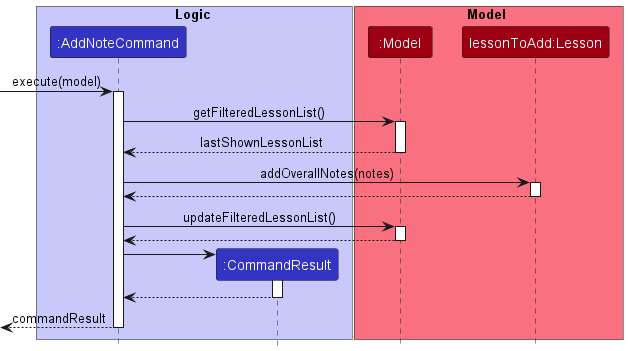
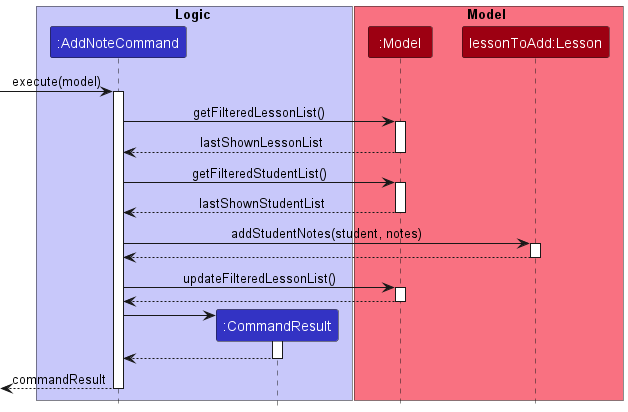
The following sequence diagram shows what happens when the AddNoteCommand is executed upon a successful command for adding to overall notes.
-
AddNoteCommandgets the list of lessons in JARVIS and gets theLessonspecified by the lesson index. -
addOverallNotesmethod of this lesson is called with the notes input by the user and the notes are added to the lesson. - The list of lessons in the model is then updated to display the notes added.
In the case where AddNoteCommand is executed for adding to student specific notes, the execution is similar except:
-
AddNoteCommandadditionally gets the list of students in JARVIS and the specifiedStudent -
addStudentNotesis called instead ofaddOverallNotes.
Documentation, logging, testing, configuration, dev-ops
Appendix: Requirements
Product scope
Target user profile: CS1101S TA
- has to keep track of significant number of tasks
- grade mission and quests
- schedule mastery checks
- studio attendance and participation
- prefer desktop apps over other types
- can type fast
- prefers typing to mouse interactions
- is reasonably comfortable using CLI apps
Value proposition: manage students, tasks and lessons in an organised manner easily and quickly
User stories
Priorities: High (must have) - * * *, Medium (nice to have) - * *, Low (unlikely to have) - *
| Priority | As a … | I want to … | So that I … |
|---|---|---|---|
* * * |
potential user | find the installation/setup instructions | can install the app properly |
* * * |
user ready to start using the app | see the basic commands | can learn how to use the most basic features of the app |
* * * |
user ready to start using the app | add the students in my tutorial class into the app | can track the students’ attendance and grades |
* * * |
user | add my tasks | can keep track of the tasks I have to do |
* * * |
user | add my lessons | can keep track of lessons I have scheduled with which students |
* * * |
user | mark tasks as done | can focus on the remaining tasks |
* * * |
user | mark tasks as not done | can go back and redo tasks that are incomplete |
* * * |
user | mark lessons as completed | can focus on upcoming lessons |
* * * |
clumsy user | delete tasks | can remove tasks I have wrongfully added |
* * * |
clumsy user | delete students | can remove students I have wrongfully added |
* * * |
clumsy user | delete lessons | can remove lessons I have wrongfully added |
* * * |
user | list the tasks that I need to do | can see all my tasks |
* * * |
user | list all students in my class | can see all my students with relevant details |
* * * |
user | list all lessons for my class | can see all upcoming and completed lessons |
* * * |
user | see my students’ mastery check completion status | know which students I have not seen for mastery check |
* * * |
user | update my students’ mastery check completion status | can keep track of which students I have already seen for mastery check |
* * * |
user | see the duration and students involved for my lessons | can keep track of when and who I have to meet in order to make preparations |
* * |
first time user | see the app being populated with sample students, tasks and lessons | can try out the functions of the app |
* * |
user ready to start using the app | clear all current data | can get rid of the sample data used for exploring the app and input my own data |
* * |
user | add attendance for a lesson | can keep track of who attended the lesson |
* * |
user | keep track of my students’ level of participation | can prompt students who are less active in class |
* * |
user | keep track of my students’ grades | can help and pay more attention to the weaker students |
* * |
user | take down notes related to a lesson | can refer back and remember important things that happened during the lesson |
* * |
user | detect if there are any lesson schedule conflicts | will not wrongly schedule lessons at the same time |
* |
user | assign different priorities to my tasks | can focus on the more important tasks |
* |
user ready to start using the app | import my timetable for the semester | can plan my TA duties in sync with tasks from other modules |
* |
user | detect if there any schedule conflicts in my upcoming tasks | resolve those conflicts and complete all my tasks |
* |
user | get the task with the next earliest deadline | can plan my schedule accordingly |
* |
user | receive reminders about upcoming deadlines | am able to meet all my deadlines on time |
* |
user | receive notifications when my students submit their assignments | know that I have assignments to grade |
* |
user | send notifications to my students | can remind them to submit their work |
* |
user | see performance statistics on each assignment | can spend more time on topics that my students are weak in |
* |
user | hide irrelevant data | can focus on the more relevant data |
Use cases
(For all use cases below, the System is JARVIS and the Actor is AVENGER, unless specified otherwise)
Use case: UC1 - View students
MSS
- Avenger requests to view students.
- JARVIS displays the students.
Use case ends.
Extensions
- 1a. JARVIS fails to understand request.
-
1a1. JARVIS tells Avenger to make a request again.
Use case resumes from step 1.
-
Use case: UC2 - View tasks
Refer to UC1 - View students with the only difference being task instead of student.
Use case: UC3 - View lessons
Refer to UC1 - View students with the only difference being lesson instead of student.
Use case: UC4 - View students, tasks and lessons at the same time
Refer to UC1 - View students with the only difference being request for all students, tasks and lessons instead of just students.
Use case: UC5 - Add a student
MSS
- Avenger requests to add a student.
- JARVIS successfully adds the student.
Use case ends.
Extensions
- 1a. JARVIS fails to understand request.
-
1a1. JARVIS tells Avenger to make a request again.
Use case resumes from step 1.
-
Use case: UC6 - Add a task
Refer to UC5 - Add a Student with the only difference being task instead of student.
Use case: UC7 - Add a lesson
Refer to UC5 - Add a Student with the only difference being lesson instead of student.
Use case: UC8 - Edit student
Preconditions: There are existing students in JARVIS.
MSS
- Avenger requests to edit a student.
- JARVIS successfully edits the student.
Use case ends.
Extensions
- 1a. JARVIS fails to understand request.
-
1a1. JARVIS tells Avenger to make a request again.
Use case resumes from step 1.
-
- 1b. Specified student not found in JARVIS.
- 1b1. JARVIS informs Avenger that the student does not exist.
- 1b2. JARVIS displays the list of students.
-
1b3. JARVIS tells Avenger to make a request again.
Use case resumes from step 1.
Use case: UC9 - Find student
Preconditions: There are existing students in JARVIS.
MSS
- Avenger requests to find a student.
- JARVIS successfully finds the student.
Extensions
- 1a. JARVIS fails to understand request.
-
1a1. JARVIS tells Avenger to make a request again.
Use case resumes from step 1.
-
- 1b. Specified student not found in JARVIS.
- 1b1. JARVIS informs Avenger that the student does not exist.
- 1b2. JARVIS displays the list of students.
-
1b3. JARVIS tells Avenger to make a request again.
Use case resumes from step 1.
Use case: UC10 - Grade student
Preconditions: There are existing students in JARVIS.
MSS
- Avenger requests to input grade for a student.
- JARVIS successfully adds the grade for the student.
Extensions
- 1a. JARVIS fails to understand request.
-
1a1. JARVIS tells Avenger to make a request again.
Use case resumes from step 1.
-
- 1b. Specified student not found in JARVIS.
- 1b1. JARVIS informs Avenger that the student does not exist.
- 1b2. JARVIS displays the list of students.
-
1b3. JARVIS tells Avenger to make a request again.
Use case resumes from step 1.
Use case: UC11 - Set mastery check result
Preconditions: There are existing students in JARVIS.
MSS
- Avenger requests to input mastery check result for a student.
- JARVIS successfully adds the mastery check result for the student.
Extensions
- 1a. JARVIS fails to understand request.
-
1a1. JARVIS tells Avenger to make a request again.
Use case resumes from step 1.
-
- 1b. Specified student not found in JARVIS.
- 1b1. JARVIS informs Avenger that the student does not exist.
- 1b2. JARVIS displays the list of students.
-
1b3. JARVIS tells Avenger to make a request again.
Use case resumes from step 1.
Use case: UC12 - Mark task as done
Preconditions: There are existing tasks in JARVIS
Guarantees: Specified task is marked as done
MSS:
- Avenger requests to mark a task as done.
- JARVIS marks the task as done.
Use case ends.
Extensions:
- 1a. JARVIS fails to understand request.
-
1a1. JARVIS tells Avenger to make a request again.
Use case resumes from step 1.
-
- 1b. Specified task not found in JARVIS.
- 1b1. JARVIS informs Avenger that the task does not exist.
- 1b2. JARVIS displays the list of tasks.
-
1b3. JARVIS tells Avenger to make a request again.
Use case resumes from step 1.
Use case: UC13 - Mark task as not done
Refer to UC12 - Mark task as done with the only difference being marking task as not done instead of done.
Use case: UC14 - Mark lesson as completed
Refer to UC12 - Mark task as done with the only difference being lesson instead of task.
Use case: UC15 - Mark lesson as incomplete
Refer to UC12 - Mark task as done with the difference being lesson instead of task and incomplete instead of done.
Use case: UC16 - Mark a student as present for a lesson
Preconditions: There are existing students and lessons in JARVIS.
MSS
- Avenger performs view lessons(UC3).
- Avenger requests to mark a student present in a lesson.
- JARVIS marks the student present in the lesson.
Use case ends.
Extensions:
- 2a. JARVIS fails to understand request.
-
2a1. JARVIS tells Avenger to make a request again.
Use case resumes from step 2.
-
- 2b. Specified lesson not found in JARVIS.
- 2b1. JARVIS informs Avenger that the lesson does not exist.
-
2b2. JARVIS tells Avenger to make a request again.
Use case resumes from step 2.
- 2c. Specified student not found in JARVIS.
- 2c1. JARVIS informs Avenger that the student does not exist in the lesson.
-
2c2. JARVIS tells Avenger to make a request again.
Use case resumes from step 2.
Use case: UC17 - Mark a student as absent for a lesson
Refer to UC16 - Mark a student as present for a lesson with the only difference being mark a student as absent instead of present.
Use case: UC18 - Add note for a student in a lesson
Preconditions: There are existing students and lessons in JARVIS.
MSS
- Avenger performs view lessons(UC3).
- Avenger requests to add a note for a student in a lesson.
- JARVIS adds the note for the student to the lesson.
Use case ends.
Extensions:
- 2a. JARVIS fails to understand request.
-
2a1. JARVIS tells Avenger to make a request again.
Use case resumes from step 2.
-
- 2b. Specified lesson not found in JARVIS.
- 2b1. JARVIS informs Avenger that the lesson does not exist.
-
2b2. JARVIS tells Avenger to make a request again.
Use case resumes from step 2.
- 2c. Specified student not found in JARVIS.
- 2c1. JARVIS informs Avenger that the student does not exist in the lesson.
-
2c2. JARVIS tells Avenger to make a request again.
Use case resumes from step 2.
Use case: UC19 - Delete note from a student in a lesson
Preconditions: There are existing students, lessons and notes for a student in JARVIS.
MSS
- Avenger performs view lessons(UC3).
- Avenger requests to delete a note from a student in a lesson.
- JARVIS deletes the note from the student to the lesson.
Use case ends.
Extensions:
- 2a. JARVIS fails to understand request.
-
2a1. JARVIS tells Avenger to make a request again.
Use case resumes from step 2.
-
- 2b. Specified lesson not found in JARVIS.
- 2b1. JARVIS informs Avenger that the lesson does not exist.
-
2b2. JARVIS tells Avenger to make a request again.
Use case resumes from step 2.
- 2c. Specified student not found in JARVIS.
- 2c1. JARVIS informs Avenger that the student does not exist in the lesson.
-
2c2. JARVIS tells Avenger to make a request again.
Use case resumes from step 2.
- 2d. Specified note not found in JARVIS.
- 2d1. JARVIS informs Avenger that the note does not exist for the student in the lesson.
-
2d2. JARVIS tells Avenger to make a request again.
Use case resumes from step 2.
Use case: UC20 - Set participation for a student in a lesson
Refer to UC18 - Add note for a student in a lesson with the only difference being setting participation instead of adding note.
Use case: UC21 - Delete a student
Preconditions: There are existing students in JARVIS.
MSS
- Avenger performs view students(UC1).
- Avenger requests to delete a student.
- JARVIS deletes the student.
Use case ends.
Extensions
- 2a. JARVIS fails to understand request.
-
2a1. JARVIS tells Avenger to make a request again.
Use case resumes from step 2.
-
- 2b. Specified student not found in JARVIS.
- 2b1. JARVIS informs Avenger that the student does not exist.
-
2b2. JARVIS tells Avenger to make a request again.
Use case resumes from step 2.
Use case: UC22 - Delete a task
Refer to UC21 - Delete a student with the only difference being task instead of student.
Use case: UC23 - Delete a lesson
Refer to UC21 - Delete a student with the only difference being lesson instead of student.
Use case: UC24 - Clear all students, tasks and lessons
Preconditions: There are existing tasks, students and/or lessons in JARVIS.
Guarantees: All students and tasks will be deleted.
MSS:
- Avenger requests to clear all data.
- JARVIS clears all data.
Use case ends.
Extensions:
- 1a. JARVIS fails to understand request.
-
1a1. JARVIS tells Avenger to make a request again.
Use case resumes from step 1.
-
Non-Functional Requirements
- Should work on Windows, Linux, and OS-X platforms that has version 11 of Java (i.e. no other Java versions) installed.
- Should work without requiring an installer and be packaged in a single jar file
- All data for the system should be stored locally in a human editable text file, and not be dependent on any remote server
- GUI should not cause any resolution-related inconveniences for standard screen resolutions (1920 x 1080 and higher) and screen scales 100% and 125%
- GUI should be usable (i.e. all functionality can be used, not necessarily optimally) for screen resolutions 1280 x 720 and higher, and for screen scales 150%
- A user with above average typing speed for regular English text (i.e. not code, not system admin commands) should be able to accomplish most of the tasks faster using commands over other means of input.
- The product is intended only for a single user (i.e. not a multi-user product)
- The system is not required to handle the actual grading of student’s works
Glossary
- Mastery check: An assessment where students in pairs must present what they have learnt in the module to their TA, and the TA will assess the students’ understanding of the concepts.
- Avenger: A teaching assistant (TA) who is responsible for teaching a studio class.
- Studio: A tutorial class with up to 8 students.
- XP: Points that will count towards a student’s grade.
- Source Academy: Online platform used for CS1101S.
- Mission: Assignment on Source Academy.
- Quest: Optional assignment on Source Academy.
Appendix: Instructions for manual testing
Given below are instructions to test the app manually.
Note: These instructions only provide a starting point for testers to work on;
testers are expected to do more exploratory testing.
Launch and shutdown
-
Initial launch
-
Download the jar file and copy into an empty folder.
-
Double-click the jar file Expected: Shows the GUI with a set of sample students, tasks and lists. The window size may not be optimum.
-
-
Saving window preferences
-
Resize the window to an optimum size. Move the window to a different location. Close the window.
-
Re-launch the app by double-clicking the jar file.
Expected: The most recent window size and location is retained.
-
-
Exiting the app
- While the app is still open, enter
exitin the command box or click on the close window button. Expected: The application closes.
- While the app is still open, enter
Adding a student
-
Adding a student while student list is being shown
-
Prerequisites: List all students using the
liststudentorlistallcommand. -
Test case:
addstudent s/John Doe m/A0123459G
Expected: Student with the nameJohn Doeand matriculation numberA0123459Ghas been added to the list of students. Details of added student shown in the status message. -
Test case :
addstudent s/J@hn Doe m/A0123459G
Expected: No student is added. Error details are shown in the status message. -
Test case :
addstudent s/John Doe m/A01234G
Expected: Similar to previous.
-
Deleting a student
-
Deleting a student while student list is being shown
-
Prerequisites: List all students using the
liststudentorlistallcommand. There must be at least one student in the list. -
Test case:
deletestudent 1
Expected: First student is deleted from the list. Details of the deleted student shown in the status message. -
Test case:
deletestudent 0
Expected: No student is deleted. Error details shown in the status message. -
Other incorrect delete student commands to try:
deletestudent,deletestudent x,...(where x is larger than the list size)
Expected: Similar to previous.
-
Editing a student
-
Edit a student to change name and/or matric number
-
Prerequisites: List all students using the
liststudentorlistallcommand. There must be at least one student in the list. -
Test case:
editstudent 1 s/John
Expected: First student’s name is changed to John for all instances. Matric number remains the same. Details of the new student name is shown in the status message. -
Test case:
editstudent 0 s/John
Expected: No student’s details is changed. Error details shown in the status message. -
Other incorrect edit student commands to try:
editstudent x s/John, editstudent 1 s/John m/B1234567A,…` (where x is larger than the list size)
Expected: Similar to previous.
-
Finding a student
-
Find a student based on their names
-
Prerequisites: List all students using the
liststudentorlistallcommand. There must be at least one student in the list. -
Test case:
findstudent yeoh
Expected: Students’ whose name containsyeohregardless of capitalisation will be shown in the student list. Number of students listed is shown in the status message. -
Test case:
findstudent
Expected: No student is found. Error details shown in the status message. -
Test case:
findstudent x(where x does not exist in any students’ name in student list)
Expected: No student is found. Student list will be empty. Zero students listed is shown in the status message. -
Other incorrect find student commands to try:
findstudentExpected: No student is found. Error details shown in the status message.
-
Adding a grade to a student
-
Adding a grade to a student while the expanded student list is being shown
-
Prerequisites: List all students using the
liststudentcommand. There must be at least one student in the list. -
Test case:
grade 1 ra1/17 mt/55
Expected: The RA1 score will be set to 17.0 and the Midterm score will be set to 55.0 for the first student in the student list. -
Test case:
grade 1 ra1/17 mt/55 pa/40 fn/101
Expected: No marks will be updated. Error details shown in status message. -
Other incorrect grade commands to try:
grade 1 ra1/19,grade x,...(where x is larger than the list size or where input score for the assessment is greater than the total marks)
Expected: Similar to previous.
-
Setting mastery check result for a student
-
Setting mastery check result for a student while the expanded student list is being shown
-
Prerequisites: List all lessons using the
liststudentcommand. There must be at least one student existing in the student list. -
Test case:
mc 1 num/1 r/pass
Expected: Mastery check 1 status has been changed from-toPASSED. Details of the student are shown in the status message. -
Test case:
mc 3 num/1 r/pass
Expected: Mastery check result is not changed. Error details shown in status message. -
Test case:
mc 1 num/1 r/p
Expected: Similar to previous.
-
Adding a task
-
Adding a task while task list is being shown
-
Prerequisites: List all tasks using the
listtaskorlistallcommand. -
Test case:
addtask t/Prepare tutorial slides d/2022-10-09
Expected: Task with the descriptionPrepare tutorial slideswith the deadlineOct-09-2022is added. Details of the task added shown in status message. -
Test case:
addtask d/2022-10-09
Expected: No task is added. Error details are shown in the status message. -
Test case:
addtask t/ d/2022-10-09
Expected: Similar to previous.
-
Deleting a task
-
Deleting a task while task list is being shown
-
Prerequisites: List all tasks using the
listtaskorlistallcommand. There must be at least one task in the list. -
Test case:
deletetask 1
Expected: The first task at the top of the list is deleted. Details of the deleted task are shown in the status message. -
Test case:
deletetask 0
Expected: No task is deleted. Error details shown in status message. -
Other incorrect delete task commands to try:
deletetask,deletetask x,...(where x is larger than the list size)
Expected: Similar to previous.
-
Adding a Mastery Check
-
Adding a mastery check while lesson list is being shown
-
Prerequisites: List all lessons using the
listlessonorlistallcommand. -
Test case:
addmc sd/2022-12-12 st/10:00 et/12:00 si/1 si/2
Expected: Mastery Check with no description on Dec-12-2022 from 10:00 to 12:00 with 1st and 2nd student in student list is added. Details of the mastery check added shown in status message. -
Test case:
addmc sd/12-12-2022 st/10:00 et/12:00 si/1 si/2
Expected: No lesson is added. Error details are shown in status message. -
Other incorrect add mastery check commands to try:
addmc sd/2022-12-12 si/1,addmc sd/2022-12-12 st/10:00,addmc si/,...
Expected: Similar to previous.
-
Adding a Consult
Refer to Adding a Mastery Check, with the only difference being addconsult instead of addmc.
Adding a Studio
-
Adding a Studio while lesson list is being shown
-
Prerequisites: List all lessons using the
listlessonorlistallcommand. -
Test case:
addstudio sd/2022-11-11 st/10:00 et/12:00
Expected: Studio with no description on Nov-11-2022 from 10:00 to 12:00 with all students in student list is added. Details of the studio added shown in status message. -
Test case:
addstudio sd/12-12-2022 st/10:00 et/12:00
Expected: No lesson is added. Error details are shown in status message. -
Other incorrect add studio commands to try:
addstudio sd/2022-12-12,addstudio sd/2022-12-12 st/10:00,addstudio ed/,...
Expected: Similar to previous.
-
Deleting a Lesson
-
Deleting a lesson while lesson list is being shown
-
Prerequisites: List all lessons using the
listlessonorlistallcommand. There must be at least one lesson in the list. -
Test case:
deletelesson 1
Expected: The first lesson at the top of the list is deleted. Details of the deleted lesson are shown in the status message. -
Test case:
deletelesson 0
Expected: No lesson is deleted. Error details shown in status message. -
Other incorrect delete lesson commands to try:
deletelesson,deletelesson x,...(where x is larger than the list size)
Expected: Similar to previous.
-
Mark Task
-
Mark a task as done while task list is being shown
-
Prerequisites: List all tasks using the
listtaskorlistallcommand. There must be at least one task in the list. -
Test case:
marktask 1
Expected: The task that was originally at the top of the list will now have a green tick at the side and shifted below tasks that are not done yet. Details of the marked task are shown in the status message. -
Test case:
marktask 0
Expected: No task is marked. Error details shown in status message. -
Other incorrect mark task commands to try:
marktask,marktask x,...(where x is larger than the list size)
Expected: Similar to previous.
-
Mark Lesson
-
Mark a lesson as completed while lesson list is being shown
-
Prerequisites: List all tasks using the
listlessonorlistallcommand. There must be at least one lesson in the list. -
Test case:
marklesson 1
Expected: The lesson that was originally at the top of the list will now have a green tick at the side and shifted below lessons that are not yet completed. Details of the marked lesson are shown in the status message. -
Test case:
marklesson 0
Expected: No lesson is marked. Error details shown in status message. -
Other incorrect mark lesson commands to try:
marklesson,marklesson x,...(where x is larger than the list size)
Expected: Similar to previous.
-
Mark Student
-
Mark a student in a lesson as present
-
Prerequisites: List all lessons in expanded lesson list using the
listlessoncommand. There must be at least one lesson in the list with at least one student. -
Test case:
markstudent li/1 si/1
Expected: The first student in the student list of the first lesson in lesson list is marked as present. Details of the marked student in the lesson are shown in the status message. -
Test case:
markstudent si/1
Expected: No student is marked. Error details shown in status message. -
Other incorrect mark student commands to try:
markstudent li/x si/1,markstudent li/1 si/x,...(where x is larger than the list size)
Expected: Similar to previous.
-
Unmark Task/Lesson/Student
Refer to Mark Task/Lesson/Student respectively, with the only difference being unmark command words instead of mark command words.
Adding a note to a lesson
-
Adding a note to a lesson while expanded lesson list is being shown
-
Prerequisites: List all lessons using the
listlessoncommand. There must be at least one lesson existing in the lesson list. -
Test case:
addnote n/Get back to jeff on streams li/1 si/1
Expected: A note is added for the first student in the first lesson in the lesson list. Details of the note that was added, student and lesson are shown in the status message. -
Test case:
addnote n/ li/1 si/1
Expected: No note is added. Error details are shown in the status message.
-
Deleting a note from a lesson
-
Deleting a note from a lesson while expanded lesson list is being shown
-
Prerequisites: List all lessons using the
listlessoncommand. There must be at least one lesson with at least one note existing in the lesson list. -
Test case:
deletenote ni/1 li/1
Expected: The first note from the first lesson in the lesson list is deleted. Details of the note that was deleted, and lesson are shown in the status message. -
Test case:
deletenote ni/1 li/1 si/1
Expected: The first note for the first student in the first lesson in the lesson list is deleted. Details of the note that was deleted, student and lesson are shown in the status message. -
Test case:
deletenote ni/1 li/0 si/1
Expected: No note is deleted. Error details are shown in the status message. -
Test case:
deletenote ni/x li/1 si/1
Expected: Similar to previous.
-
Adding participation for a student in a lesson
-
Adding participation for a student in a lesson while the expanded lesson list is being shown.
-
Prerequisites: List all lessons using the
listlessoncommand. There must be at least one lesson existing in the lesson list. -
Test case:
addpart p/100 li/1 si/1
Expected: Participation for the 1st student in the 1st lesson in your lesson list is set to 100. Details of student, lesson and participation points added are shown in the status message. -
Test case:
addpart p/501 li/1 si/1
Expected: No participation added. Error details shown in status message. -
Test case:
addpart p/-1 li/1 si/1
Expected: Similar to previous.
-
Saving data
-
Dealing with missing data file(s).
-
Prerequisites: If there exists studentbook.json, taskbook.json and/or lessonbook.json file(s) in the data folder at the root of the application directory, delete the file(s).
-
Test case: Double-click on the jar file to run the application.
Expected: Application runs and loads the sample data fromSampleStudentUtil#getSampleStudentBook,SampleTaskUtil#getSampleTaskBookand/orSampleLessonUtil#getSampleLessonBook.
-
-
Dealing with corrupted data file(s).
-
Prerequisites: Modify the studentbook.json, taskbook.json and/or lessonbook.json file(s) to be an illegal format, such as deleting the “name” field of a student, the “taskDesc” field of a task, and/or the “attendance” field of a lesson.
-
Test case: Double-click on the jar file to run the application.
Expected: Application runs and has no data on initial load. Running the next command overwrites the current corrupted json file(s).
-